
Getting Started with Contact Bridge
Connect Google Contacts, choose who you want to import, review the details, and send those contacts into your CRM.
You stay in control. Nothing is imported until you choose contacts and confirm the import.
You’ll need

Contact Bridge installed in your CRM

A Google account with contacts

Permission to connect Google Contacts
You can disconnect Google or delete Contact Bridge’s stored data later from Data & Privacy.
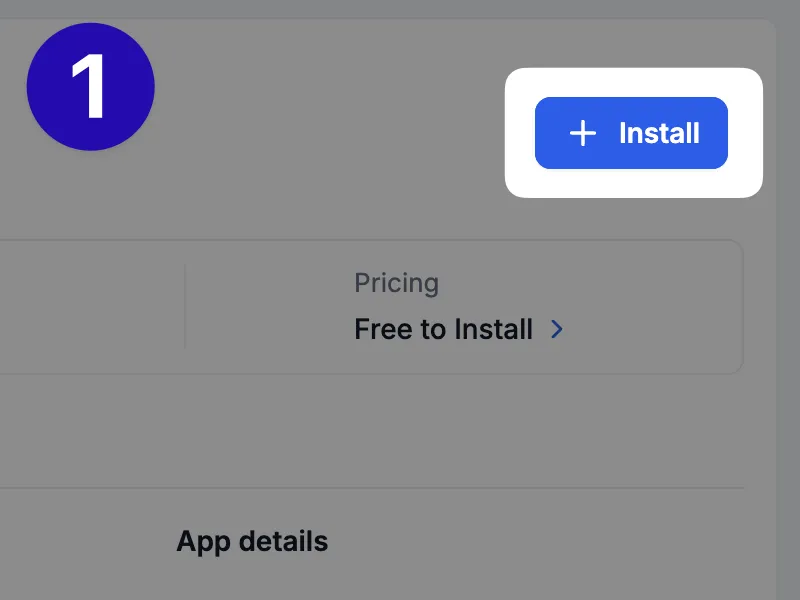
Open Contact Bridge from your CRM
After Contact Bridge is installed, open the Contact Bridge integration from your CRM. If this is your first visit, Contact Bridge will guide you through connecting Google Contacts.
If you return later, you can use Contact Bridge again to import additional contacts.
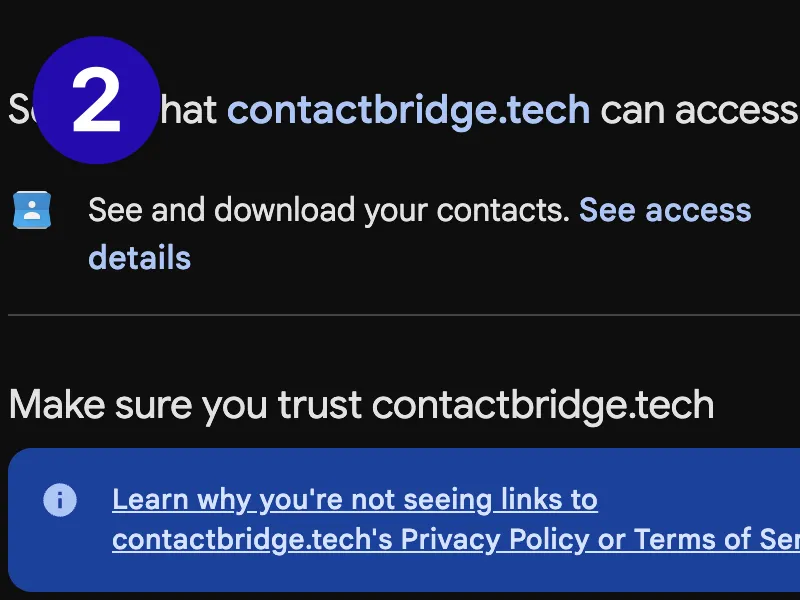
Connect Google Contacts
Select Connect Google Contacts, choose the Google account you want to use, and approve access to Google Contacts.
Contact Bridge needs permission to read your Google Contacts so it can show them for review and send them to your CRM.
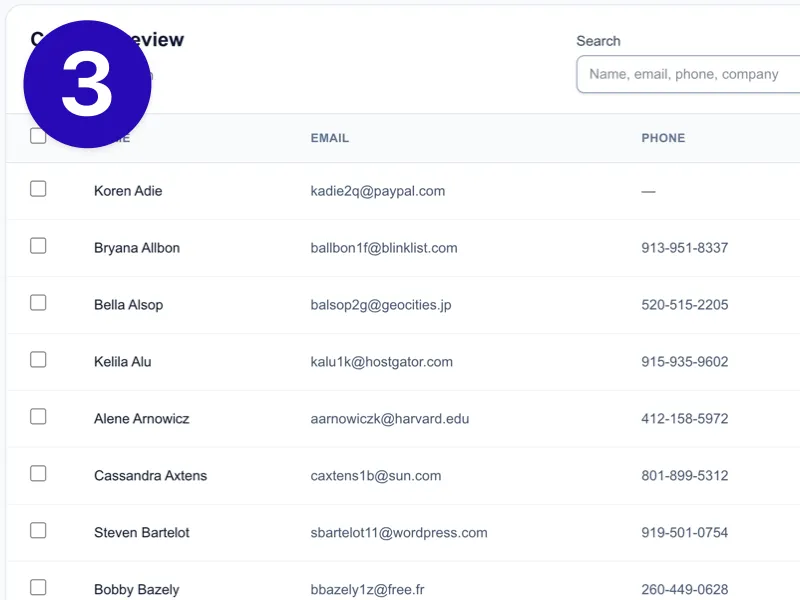
Find the contacts you want to import
Contact Bridge shows the Google contacts available for you to review. Use search, Google labels, and import filters to narrow the list.
Select only the contacts you want to import. The number marked Available to import does not mean those contacts have been sent to your CRM.
Nothing is imported just by viewing or selecting contacts.
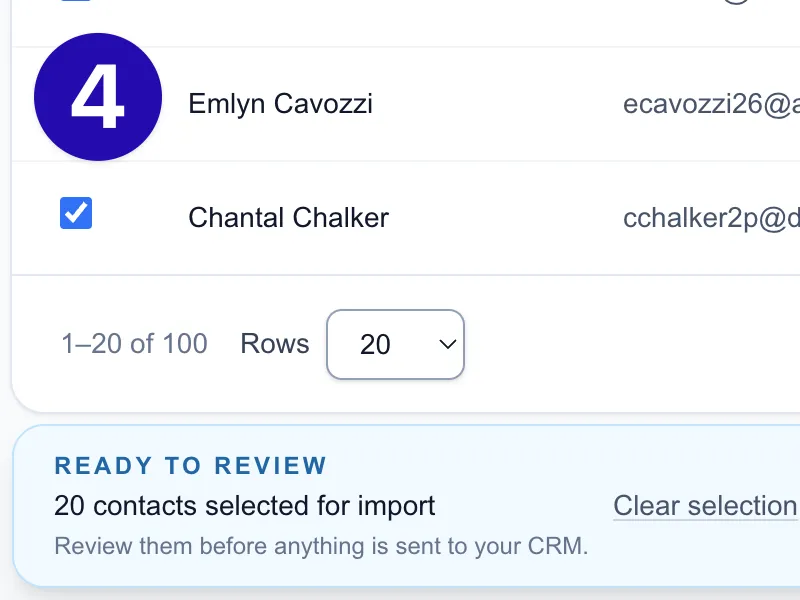
Review before importing
Choose Review selected to see the contact information Contact Bridge plans to send into your CRM.
Review names, email addresses, phone numbers, company, addresses, websites, birthdays, tags, and notes when available.
Contact Bridge may show additional emails or phone numbers for reference even when they are not included in the current import.
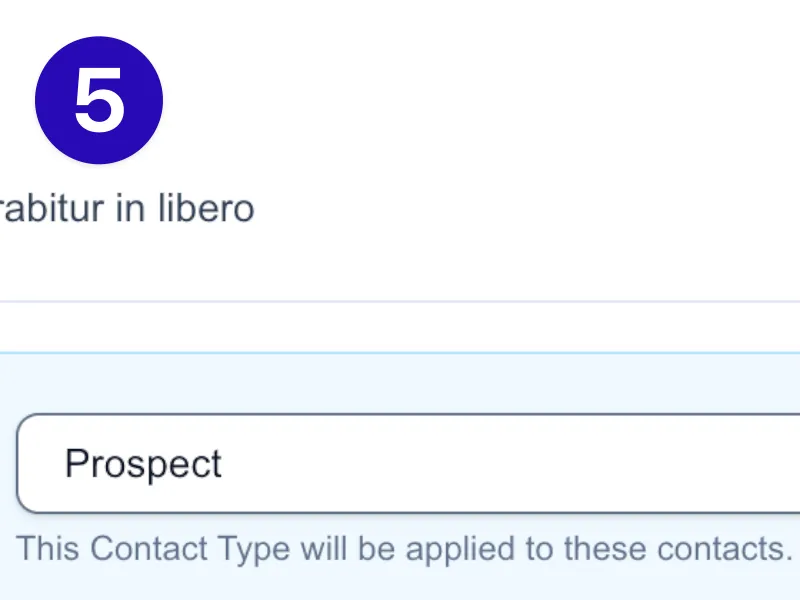
Choose a Contact Type if you want one
Before importing, you can choose a Contact Type from your CRM. If you do not want to assign one, leave No Contact Type selected.
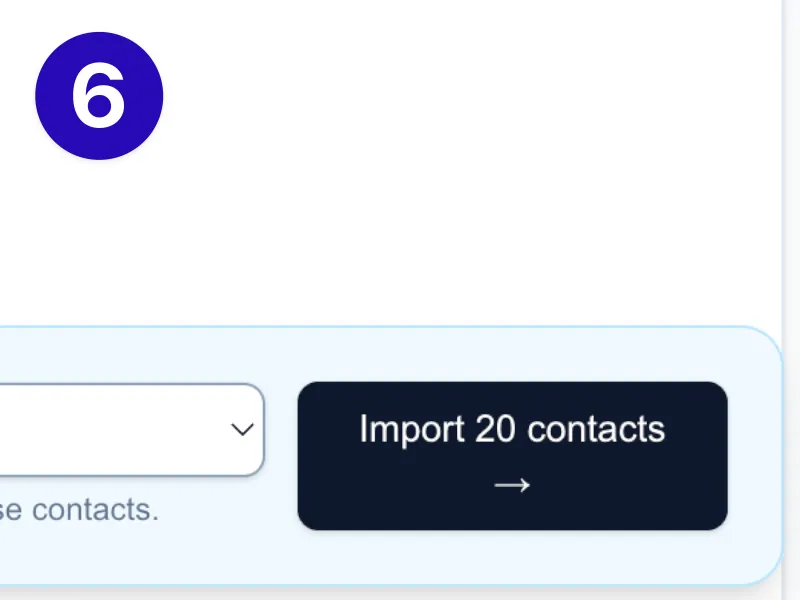
Confirm the import
Click Import selected when you’re ready. Contact Bridge will send the selected contacts into your CRM and show you when the import is complete.
After a successful import, you can choose Import more contacts to return to the contact browser.
Your previous selection is cleared after the completed import so you can start fresh.
Import more contacts whenever you need to.
Contact Bridge is not a one-time setup. Return whenever you want to bring additional Google contacts into your CRM.
Search, filter, select, review, and import only the contacts you choose.
Managing your Google connection
Disconnect Google
Removes Contact Bridge’s access to Google Contacts. Your Google contacts are not deleted, contacts already imported into your CRM remain there, and your Contact Bridge import history remains available.
Delete Contact Bridge Data
Permanently removes the connection information, import history, contact mappings, and session data Contact Bridge stores for your account. It does not delete contacts from Google or your CRM, and it does not uninstall the Contact Bridge integration from your CRM.
Need help?
Visit Contact Bridge Support if you have trouble connecting Google, granting Contacts access, reviewing contacts, or completing an import.
Contact Bridge
A simple way to move the Google contacts you choose into your CRM.
© 2026 Contact Bridge
contactbridge.tech
© 2026 Contact Bridge
contactbridge.tech